What Is a Fork in Git? Fork vs Clone Explained
Aug 12, 2026
•
#git
#github
•
5 mins read
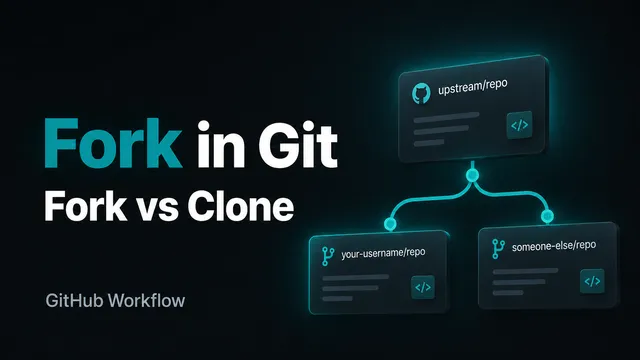
A fork is your own copy of another repository on a platform such as GitHub. It lets you change the project under your account without touching the original repository.
Forks are especially useful when you want to contribute to an open-source project but do not have permission to push directly to it. You create a fork, make your changes there, and then open a pull request back to the original project.
What Is a Fork in Git?
A fork is a copy of a repository created under another user or organization account on a Git hosting platform.
For example, imagine there is a public GitHub repository:
github.com/original-owner/project
After you fork it, GitHub creates something like:
github.com/your-username/project
The new repository contains the same code and Git history at the moment you create the fork. From that point, your copy is separate. You can create branches, push commits, test ideas, or even take the project in a different direction.
The important detail is that forking is not a Git command. It is a feature provided by GitHub, GitLab, Bitbucket, and similar platforms.
Why Would You Fork a Repository?
The most common reason is contributing to a project you do not own.
If you have no write access to the original repository, you cannot simply push your branch there. A fork gives you a repository where you do have full access.
A typical workflow looks like this:
- Fork the original repository.
- Clone your fork to your computer.
- Create a branch.
- Make your changes.
- Push the branch to your fork.
- Open a pull request to the original repository.
Forks are also useful for experimentation. You can refactor large parts of a project, test another architecture, or build your own version without affecting the source repository.
Sometimes a fork eventually becomes a separate product. But in day-to-day development, forks are mostly used as a safe way to contribute to projects owned by someone else.
How to Fork a Repository on GitHub
On GitHub, open the repository you want to copy and click Fork in the top-right area of the page.
GitHub will ask where the fork should be created. In most cases, you simply choose your personal account.
Once GitHub creates the fork, clone your fork, not the original repository:
git clone https://github.com/your-username/project.git
cd project
Now your local repository is connected to your fork through the origin remote.
You can check it with:
git remote -vYou should see your fork listed as origin.
Add the Original Repository as Upstream
If the original project keeps changing, your fork can quickly become outdated. To make synchronization easier, add the original repository as another remote called upstream:
git remote add upstream https://github.com/original-owner/project.gitCheck the remotes again:
git remote -vYou will usually have two remotes:
origin- your forkupstream- the original repository
This setup makes it easy to pull new changes from the source project while still pushing your own work to your fork.
Make Changes in a Separate Branch
Avoid doing feature work directly on main. Create a branch for the change you want to make:
git switch -c fix/mobile-menuMake your changes, then commit them:
git add .
git commit -m "Fix mobile menu behavior"
Push the branch to your fork:
git push -u origin fix/mobile-menuYour branch now exists on GitHub under your fork.
From there, GitHub will let you create a pull request from your branch to the original repository.
What Happens After You Open a Pull Request?
The maintainers of the original project can review your code. They may approve it, ask for changes, leave comments, or reject the pull request.
If they ask for changes, you normally keep working on the same local branch. Commit the updates and push them to your fork again:
git add .
git commit -m "Update mobile menu fix"
git push
The pull request updates automatically because it points to that branch in your fork.
If the maintainers approve the change, they can merge it into the original repository.
How to Keep Your Fork Up to Date
While you are working, other developers may continue pushing changes to the original project. Before starting new work, it is a good idea to sync your fork.
Fetch the latest changes from upstream:
git fetch upstreamSwitch to your local main branch:
git switch mainMerge the latest upstream changes:
git merge upstream/mainThen update your fork on GitHub:
git push origin mainKeeping your fork reasonably current reduces the chance of unnecessary merge conflicts later.
Fork vs Clone: What Is the Difference?
Fork and clone are related, but they solve different problems.
In practice, you often use both.
First you fork a repository on GitHub. Then you clone that fork to your computer.
Simple Example
Imagine you find a bug in an open-source React component library.
You do not have permission to push to the library's repository, but you know how to fix the issue.
You can:
- Fork the repository.
- Clone your fork.
- Create a branch such as
fix/select-keyboard-navigation. - Fix the component.
- Add or update tests.
- Push the branch to your fork.
- Open a pull request to the original repository.
The maintainers can review the fix and merge it. You solve your problem without needing direct access to their repository.
Best Practices When Working With Forks
Keep main clean
Use separate branches for fixes and features. This makes it easier to sync your fork and open focused pull requests.
Sync before starting new work
Fetch the newest changes from the upstream repository before creating a new branch. Starting from an old version often creates avoidable conflicts.
Read the contribution guide
Many open-source projects have a CONTRIBUTING.md file with rules for branches, commits, tests, formatting, and pull requests.
Keep pull requests focused
A small pull request that fixes one problem is easier to review than a large PR containing unrelated changes.
Explain what you changed
A good pull request description should explain the problem, the solution, and anything reviewers should test or pay attention to.
Do You Need a Fork for Your Own Team Repository?
Usually, no.
If you already have write access to a repository, the normal workflow is simpler: clone the repository, create a branch, push it, and open a pull request.
Forks become useful when you need separation between your copy and the original repository, especially when you do not have permission to push branches directly to the source project.
Conclusion
A fork gives you your own remote copy of another repository. It is one of the main reasons open-source contribution works so well on platforms like GitHub.
The basic idea is simple: fork on GitHub, clone your fork locally, work in a branch, push your changes, and open a pull request back to the original project.
Once you understand the difference between a fork and a clone, the workflow becomes much easier to follow.