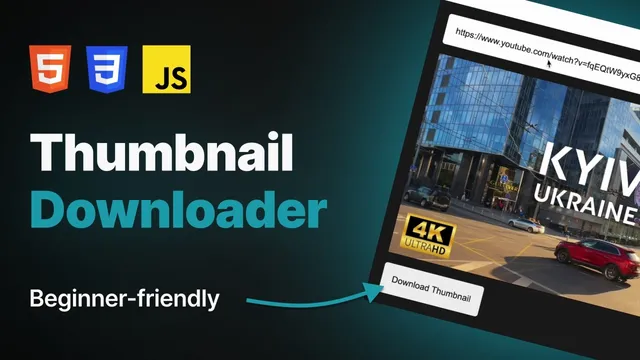
Build a YouTube Thumbnail Downloader with HTML, CSS & JavaScript
Jun 13, 2025
•
#html
#css
#javascript
#project
•
2 mins read
🎥 Watch the video version here — or follow the full step-by-step guide below.
This project is great for beginners. We’ll use plain HTML, CSS, and JavaScript to build a small web app that lets users enter any YouTube link and download the thumbnail image.
Preview: https://vladislavdegtyarenko.github.io/youtube-thumbnail-downloader/
Full source code: https://github.com/VladislavDegtyarenko/youtube-thumbnail-downloader
🛠️ Step 1: Setup the Project Folder
Create a new folder and open it in your code editor (like VS Code). Inside, create 3 files:
index.htmlstyle.cssscript.js
🧱 Step 2: Write the HTML
Here’s the structure of our app in index.html:
<!DOCTYPE html>
<html lang="en">
  <head>
    <meta charset="UTF-8" />
    <meta name="viewport" content="width=device-width, initial-scale=1.0" />
    <title>YouTube Thumbnail Downloader</title>
    <link rel="stylesheet" href="./style.css" />
    <link rel="icon" href="./youtube-logo.svg" />
    <script src="./script.js"></script>
  </head>
  <body>
    <div class="container">
      <h1>
        <img src="./youtube-logo.svg" alt="youtube logo" />
        YouTube Thumbnail Downloader
      </h1>
      <input type="text" id="url" placeholder="Enter YouTube video URL" />
      <span id="error" hidden>Enter a valid YouTube URL.</span>
      <div class="thumbnail-container" hidden>
        <img src="" alt="thumbnail" id="thumnail" />
        <button id="donwload-thumbnail">Download Thumbnail</button>
      </div>
    </div>
  </body>
</html>
🎨 Step 3: Apply Styling with CSS
In style.css:
* {
  margin: 0;
  padding: 0;
  box-sizing: border-box;
}

body {
  font-family: sans-serif;
  background-color: #1a1a1a;
  color: #fff;
}

.container {
  max-width: 600px;
  margin: 0 auto;
  padding: 1.25rem;
  display: flex;
  flex-direction: column;
  align-items: center;
  gap: 1rem;
  height: 100vh;
}

.container h1 {
  font-size: 2rem;
  display: flex;
  align-items: center;
  gap: 0.5rem;
}

.container h1 img {
  width: 3rem;
  height: 2rem;
  object-fit: contain;
}

input {
  outline: none;
  width: 100%;
}

input,
button {
  padding: 1rem;
  border-radius: 0.25rem;
  border: none;
}

.thumbnail-container {
  width: 100%;
}

.thumbnail-container img {
  width: 100%;
  aspect-ratio: 16 / 9;
  display: block;
}

.thumbnail-container button {
  margin-top: 1rem;
  cursor: pointer;
  transition: 0.15s background-color;
}

.thumbnail-container button:hover {
  background-color: #fff;
}
🧠 Step 4: Add JavaScript Logic
In script.js:
document.addEventListener("DOMContentLoaded", () => {
  const urlInput = document.querySelector("#url");
  const thumbnailContainer = document.querySelector(".thumbnail-container");
  const thumbnailImage = thumbnailContainer.querySelector("img");
  const downloadThumbnailButton = thumbnailContainer.querySelector("button");
  const errorElement = document.querySelector("#error");

  function getYoutubeVideoId(urlString) {
    try {
      const url = new URL(urlString);

      if (url.hostname.includes("youtube.com") && url.pathname.includes("shorts")) {
        return url.pathname.split("/")[2];
      }

      if (url.hostname === "youtu.be") {
        return url.pathname.slice(1);
      }

      if (url.hostname.includes("youtube.com")) {
        return url.searchParams.get("v");
      }

      return null;
    } catch (error) {
      return null;
    }
  }

  function handleUrlInput() {
    const url = urlInput.value;

    if (!url) {
      thumbnailImage.src = "";
      thumbnailContainer.hidden = true;
      errorElement.hidden = true;
      return;
    }

    const videoId = getYoutubeVideoId(url);

    if (videoId) {
      thumbnailImage.src = `https://img.youtube.com/vi/${videoId}/maxresdefault.jpg`;
      thumbnailContainer.hidden = false;
      errorElement.hidden = true;
    } else {
      thumbnailImage.src = "";
      thumbnailContainer.hidden = true;
      errorElement.hidden = false;
    }
  }

  urlInput.addEventListener("input", handleUrlInput);

  function handleDownload() {
    const thumbnailUrl = thumbnailImage.src;
    if (!thumbnailUrl) return;

    const a = document.createElement("a");
    a.href = thumbnailUrl;
    a.download = "thumbnail.jpg";
    a.target = "_blank";
    a.click();
    a.remove();
  }

  downloadThumbnailButton.addEventListener("click", handleDownload);
});
✅ What You Learned
- How to extract YouTube video IDs using JavaScript
- How to build a clean UI with HTML & CSS
- How to show/hide elements conditionally
- How to download images using JavaScript
Got questions or want to suggest a feature? Drop a comment on the YouTube video!
🌐 Website: https://www.vd-developer.online
📖 Blog: https://www.vd-developer.online/blog
📸 Instagram: https://www.instagram.com/vladislavdegtyarenko
📩 Telegram: https://t.me/@Vladislav_Degtyarenko